Setting up a new signal booster should be fast, straightforward, and frustration-free. Whether you are trying to eliminate a dead zone in your upstairs home office or extend wireless coverage to your backyard patio, proper installation and device placement are essential for achieving optimal signal strength.
In this complete Swift Power Hub Wi-Fi Repeater setup guide, we break down the step-by-step installation process, optimal wall placement strategies, USB charging features, and quick troubleshooting solutions. Before starting, you can also review our detailed Swift Power Hub Wi-Fi Repeater review or check out our Swift Power Hub comparison guide.
⚡ Quick Fact Sheet (Fast Reader Summary)
- 📌 Setup Time: Under 3 minutes using standard plug-and-play synchronization
- 📌 Ideal Wall Placement: Halfway point between your central router and the target dead spot
- 📌 Compatibility: Universal support for standard 2.4GHz Wi-Fi home routers
- 📌 Dual Utility: Built-in high-speed USB ports power phones and tablets during operation
- 📌 Signal Verification: Front LED indicator confirms solid wireless link strength
- 📌 Reset Function: Hardware reset button restores factory network settings instantly
Pre-Installation Network Checklist
Before initiating the device connection, ensure your primary router is powered on and functioning normally. Verify that you know your active network SSID (network name) and wireless password.
According to networking guidelines from the Federal Communications Commission (FCC), keeping wireless hardware elevated and clear of large metal appliances reduces physical signal reflection during setup.
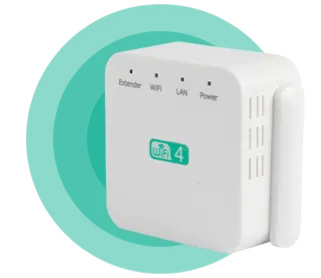
Figure 1: Swift Power Hub hardware unit prepared for wall connection.
Step-by-Step Swift Power Hub Wi-Fi Repeater Setup
Follow these four simple operational steps to complete your Swift Power Hub Wi-Fi Repeater setup in under three minutes:
- Initial Power-Up: Plug the Swift Power Hub into a wall socket located near your primary wireless router for initial pairing. The LED status indicator light will illuminate.
- Initiate Synchronization: Press the sync/WPS button on your main router, then press the pairing button on the front panel of the Swift Power Hub.
- Network Link Confirmation: Wait 30 to 60 seconds until the connection indicator turns solid, signifying successful handshake synchronization with your primary network.
- Relocate to Target Area: Unplug the booster and move it to a wall socket situated midway between your router and the dead zone area. The device remembers your network settings automatically.

Figure 2: Enjoying seamless high-speed connectivity after simple installation.
Swift Power Hub Placement Guide for Maximum Coverage
Proper placement is the single most critical factor in achieving peak signal extension. The official Swift Power Hub placement guide recommends placing the unit in a location where it can still receive at least a 50% signal strength level from your main router.
- DO: Place the device in open hallways or clear wall outlets at waist height.
- DO: Keep the extender away from thick concrete walls and major mirror surfaces.
- DON'T: Hide the booster behind heavy furniture, couches, or metal cabinets.
- DON'T: Plug the unit directly inside the dead zone where no router signal reaches.
How to Use the Integrated USB Power Charger
One major advantage highlighted during our tests is learning how to install Swift Power Hub booster units without giving up valuable outlet space. The integrated dual USB charging ports on the bottom panel work independently of the Wi-Fi booster hardware.
Simply connect your standard USB mobile charging cable into either port to power smartphones, wireless headphones, or e-readers while enjoying boosted Wi-Fi throughput across the room.
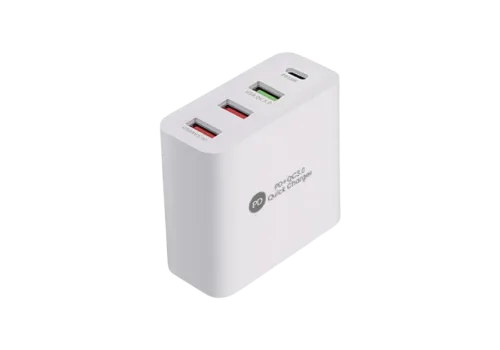
Figure 3: Built-in USB charging ports powering devices directly.
(Sponsored Link - Direct access to official promotional page)
Swift Power Hub Troubleshooting & Connection Fixes
If you encounter setup issues, this comprehensive Swift Power Hub troubleshooting table addresses the most common connection scenarios:
| Issue / Symptom | Probable Cause | Recommended Solution |
|---|---|---|
| Red LED Light | Too far from main router | Move booster 5 to 10 feet closer to router. |
| No Internet Connection | Incorrect password during pairing | Perform a 10-second factory pinhole reset. |
| Slow USB Charging | Damaged USB cable wire | Replace with high-amperage rated cable. |
User Experiences & Setup Feedback
Disclaimer: Setup times and signal range may vary depending on house architecture and router model.

"Literally took less than two minutes to pair with my router. Now I get full bar Wi-Fi in my basement workshop!"
— Kevin T., Verified Buyer
"The placement light made it super obvious where to plug it in. The extra USB slots on the wall unit are super handy."
— Melisa P., Verified BuyerFrequently Asked Questions (FAQ)
1. What should I do if the Swift Power Hub fails to pair?
Insert a pin into the reset hole on the side for 10 seconds until the lights flash, then repeat the initial pairing procedure near your router.
2. Will unplugging the unit erase my saved Wi-Fi settings?
No, the booster features non-volatile memory that retains your network password even when unplugged or during power outages.
3. Can I connect external hardware devices via Ethernet?
The primary setup operates wirelessly, while the physical ports on the housing are dedicated high-speed USB power charging slots.
Final Setup Verdict & Summary
Completing your Swift Power Hub Wi-Fi Repeater setup requires zero technical expertise or expensive service calls. By placing the booster halfway between your router and dead spots, you unlock immediate full-home coverage alongside convenient USB device charging.